Design embroidery on your hat in 3D
Embroidery is never just an isolated logo file. Scale, placement, cap shape, panel seams and the fabric around it all change how the finished piece reads. Alpha Crowns Studio lets you place your artwork on a real 3D cap and preview embroidery treatments in context — so you make decisions on the actual hat, not a flat mockup.
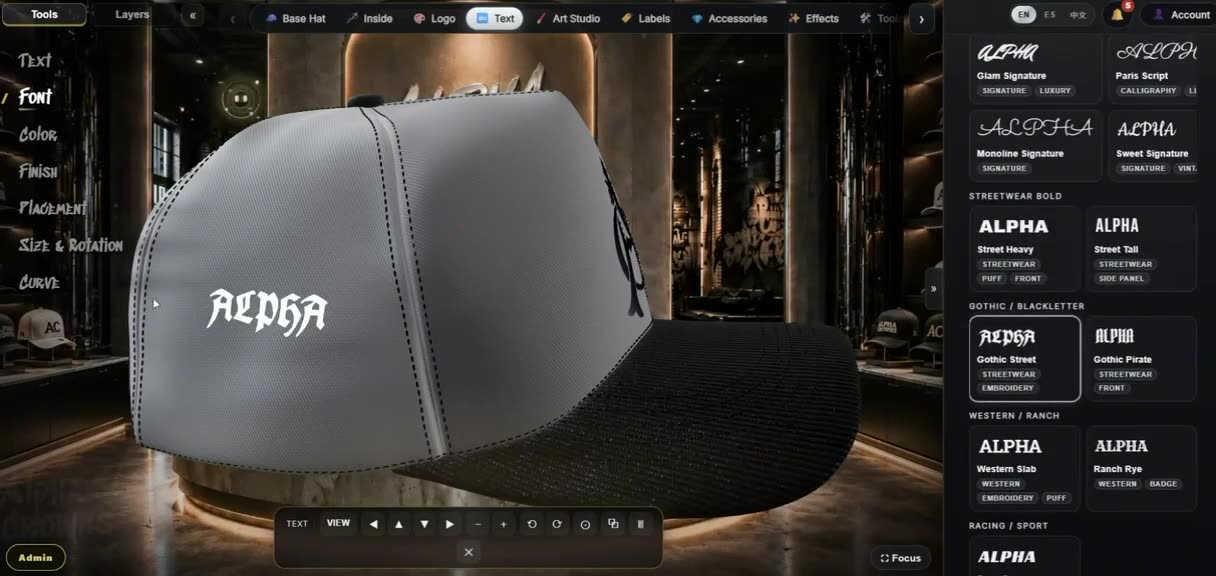
What this is: a place to design and preview embroidery on a cap. You direct the artwork, treatment, size and placement in real 3D, and every choice becomes part of a spec you can hand to a maker. It is a visualization studio — the physical embroidery is still produced by your embroiderer or manufacturer.
Start with your logo or lettering
Upload your own artwork — PNG, JPG, WebP or SVG — or add text and choose from a large set of fonts. Your original file is kept intact, so you can try it as different treatments without re-uploading. Lettering can be previewed in finishes including flat embroidery, metallic thread and 3D puff, and vector artwork can be previewed as raised puff on the front.
Place it on the actual cap
Instead of judging a logo on a blank rectangle, you place it on a real 3D hat and see it wrap and conform to the curved panels, catching the studio lighting like real thread. Artwork can sit on six areas — front, both sides, back, the visor and the under-visor — so you can plan front logos, side hits, back marks and brim details as one composition.
Preview embroidery treatments
Decoration is more than a picture pasted on the hat. You can preview how your artwork reads as different real treatments and premium finishes:
Embroidery looks
- Flat embroidery preview
- Patch-style look with a stitched border
- Raised 3D-puff preview with adjustable height
- Metallic-thread finish
Premium details
- Rhinestone / gem placement
- Metal pin and enamel-pin finishes
- Text finishes: flat, embroidered, metallic, 3D puff
- Everything shown on the curved cap, lit in 3D
These are design-time previews for visualization. They are not a digitizing or stitch-file (DST) engine, and they do not output stitch counts or foam specs — your embroiderer or digitizer produces the final stitch file and confirms production feasibility.
Flat embroidery vs 3D puff
The two most common headwear treatments read very differently, and previewing helps you pick the right one for your artwork:
- Flat embroidery sits close to the cap surface — versatile, and comfortable with finer detail and smaller lettering.
- 3D puff gives a raised, dimensional look in physical production, which is why bold, simple shapes and chunky lettering generally suit it better than tiny, intricate detail.
Previewing both on your own cap, at the size and spot you intend, is the fastest way to see which treatment carries your logo — before you take it to an embroiderer for the final call.
Judge placement before production
Placement is where good ideas succeed or fall flat, and it is hard to judge on a 2D image. On the 3D hat you can evaluate the things that actually decide the result: scale relative to the panel, vertical and horizontal position, visual balance, how the artwork interacts with seams and panel edges, and the overall composition across the cap. Resize with a width control, rotate to line it up, and see an estimated real-world size as you go.
Keep designing the rest of the cap
Embroidery is one part of a complete hat, and it reads differently depending on everything around it. In the same studio you set crown, visor and panel materials and colors, the button, stitching, strap and closure, and the full interior — so your logo is judged against the real cap, not in isolation. See the full workflow on the 3D hat designer page.
From embroidery preview to your Tech Pack
When the design is ready, the same model drafts a manufacturer-readable tech pack — multi-angle views, materials and colors per part, and every logo and text placement with approximate size, finish and rotation, plus a checklist to confirm thread colors and embroidery finish before production. You save it as a PDF from your browser. The preview does not replace embroidery digitizing or manufacturer validation; it gives you and your maker a clear, shared visual and specification to work from.
AI-assisted artwork, if you want a head start
If you are still shaping a mark, the studio can generate logo and lettering artwork styled for real headwear finishes — embroidered, 3D puff, chenille, metallic and enamel-pin looks — that you then place and preview on the cap yourself. It is a starting point for the artwork, not an automatic hat. Details are on the AI hat design page.
Built for real production conversations
The point of previewing embroidery in 3D is not to replace your embroiderer — it is to give you and your maker a clearer shared reference before anyone commits. Instead of describing a logo in words, you hand over a visual of the treatment on the actual cap plus a written specification of colors, finishes, sizes and placements. That is a better brief, and it means fewer surprises when a sample comes back. Alpha Crowns Studio prepares the design and connects you to manufacturers you choose; it does not manufacture the hats itself.
How it works
- Start with the cap — pick the base, materials and colors in 3D.
- Add your logo or lettering — upload artwork or add text.
- Position and size it — place on front, sides, back, visor or under-visor; resize and rotate.
- Preview the treatment — flat embroidery, 3D puff, metallic thread and premium details.
- Review the complete hat in 3D — judge the artwork against the finished cap.
- Prepare the tech pack — specs, placements and a checklist; save as PDF.
- Take it to a manufacturer — request quotes and communicate the design in the app.
FAQ
- What is a hat embroidery designer?
- It is a tool for designing and previewing how embroidery will look on a cap. In Alpha Crowns Studio you place your logo or lettering on a real 3D hat, choose an embroidery treatment such as flat or 3D puff, and judge the size, placement and appearance in context — before anything is produced.
- Can I preview 3D Puff embroidery on my hat?
- Yes. You can preview a raised 3D-puff look on your logo and lettering, with an adjustable puff height, and see it on the curved cap surface in 3D. It is a design-time visual preview to help you decide — not a foam or stitch specification.
- Does Alpha Crowns digitize embroidery files?
- No. Alpha Crowns Studio is a design and visualization tool. It does not digitize artwork or produce machine embroidery files such as DST or PES, and it does not output stitch counts. Your embroiderer or digitizer produces the final stitch file from your approved design.
- Can I upload my own logo?
- Yes. You can upload your own artwork (PNG, JPG, WebP or SVG), place it on the cap, and resize and rotate it. Vector artwork can also be previewed as raised 3D puff on the front.
- Can I add embroidered text?
- Yes. You can add text layers, choose from a large set of fonts, and preview text finishes including flat embroidery, metallic thread and 3D puff.
- Can I see the embroidery before sending the design to a manufacturer?
- Yes — that is the point. You preview the embroidery treatment on the complete 3D hat, then generate a tech pack you save as a PDF and use to request quotes and communicate the design to manufacturers inside the app.
- What is the difference between an embroidery preview and a digitized embroidery file?
- A preview is a visual approximation that shows how a treatment could look on your cap so you can make design decisions. A digitized embroidery file is the machine instruction set (for example DST) that a factory sews from. Alpha Crowns Studio produces the preview and the design specification; your embroiderer or digitizer produces the stitch file and confirms production feasibility.
- Can I use the design in a hat Tech Pack?
- Yes. The same design drafts a manufacturer-readable tech pack that captures your colors, materials, finishes, and every logo and text placement with approximate size and rotation. You save it as a PDF from your browser.
Preview embroidery on your own cap in 3D, then take it to production.
Private beta — sign in or request an account, then start designing once approved.